Decision Tree

How can we help with payment cards?

What do you want to clarify?

Do you have an C card?

Has your card been activated?

Do you have access to online banking?

What authorization device are you using to access Online bank?

Are you joining Online banking first time?

Do you know username of your Online Banking?

Where can I find my username for Online Banking?

You created your username for the Online Bank when you submitted the application called “Application to Activate the Citadele Online Bank”. You can find your Online Banking username in this application under “Authorisation tool type”.

If you became a Citadele client remotely, you will find your username for the Online Bank in the application called “Confirmation of Receiving Services”, which you signed in the presence of a courier. If you became a client on the app and received your card by mail, you received your username by SMS to the phone number you indicated.

If you cannot find the application which contains your online banking username, you will have to visit a Citadele branch and bring a form of ID (passport or ID card).

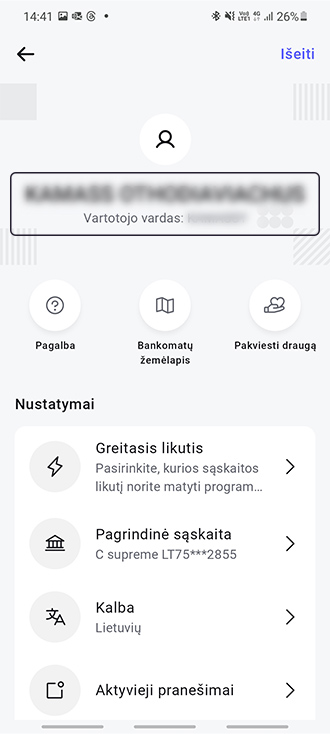
If you have access to the Citadele app, log in to it, click on the profile icon on the top right corner, under your name and surname will be your online bank username.

Are you satisfied with the answer?

Did you get to the authorization window?

How do I reinstate MobileSCAN notifications for authorisation?

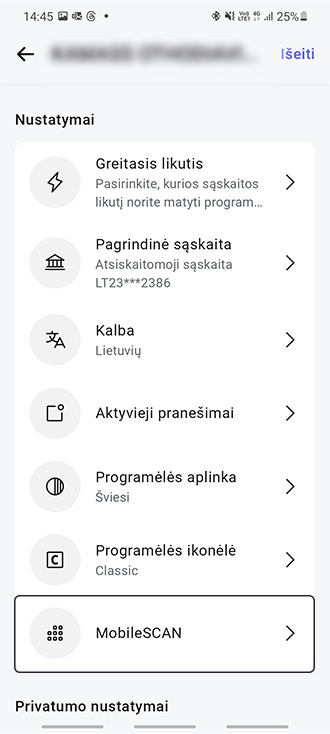
To reinstate MobileSCAN notifications, log in to the mobile app. Click on the profile icon on the top right corner and select MobileSCAN.

In the upper right-hand corner is a gear icon. When you click on this, all your MobileSCAN devices will be shown.

Find your device and select it, then select Reset push notifications.

What do MobileSCAN push notifications look like?

These notifications look just like other Citadele notifications, but when you click on them, you will be taken to the Citadele app.

In the Citadele app, you will have to confirm this request by entering the 5-digit MobileSCAN code, or biometric such as your finger print. 

After you successfully confirm, you will see that you can continue on.

How do I know if I am receiving MobileSCAN push notifications? 

You receive these notifications when you need to authorise and confirm that it is really you, for example, when you log in to the online bank. When you enter your username, we will send a MobileSCAN notification to your smart device which, when you open it, you can use to confirm your identity by entering your MobileSCAN code.
 

Are you satisfied with the answer?

What type of smartphone/phone do you have?

What are the most common reasons for not receiving push notifications on my Android smartphone?

Sometime, notifications do not work because they are blocked for the whole device. 
You can reinstate them in various ways depending on the phone manufacturer and Android version. 
If you cannot find your device here, then you can try searching for official tutorials for your device. 

Samsung, Huawei

Both of these manufacturers have similar notification management. 

Go to Settings → Programmes → Citadele. Check that notifications are enabled. 

You should also check whether Do Not Disturb is activated. You can do this under Settings → Notifications, and find Do Not Disturb. If it is activated, you will need to deactivate it, as this blocks notifications (may not be available on all devices). 

Source: https://www.samsung.com/uk/support/mobile-devices/how-do-i-manage-notifications/

Source: https://consumer.huawei.com/en/support/content/en-us00754154/

Xiaomi

Go to Settings → Apps → Manage apps. Using the search bar, find Citadele and select the correct icon.  

1) Click on Battery Saver and ensure that you have selected No Limitations. 

2) Go back and open Other Permissions, and ensure that you have enabled:

  • Floating notifications
  • Lock screen notifications
  • Show notifications

Are you satisfied with the answer?